Asset library
The asset library is the central place to upload, browse, and manage the media files used across your project. Assets in the library can power compositions, entries, and patterns which use an asset parameter.
The library shows assets you've uploaded to Uniform alongside any assets exposed through your integrated asset sources such as Cloudinary, Bynder, or Frontify. Filtering and search options may differ slightly for integration-backed asset sources.
Asset library overview#
The library is available under Experience > Assets in the application menu.
The available actions and features depend on whether you're browsing the Uniform Asset Library or a DAM-backed external asset source. When your project has a DAM integration installed, the sidebar gains a Source group at the top so you can switch between Uniform Asset Library and each connected source. Projects with no integration go straight to the Uniform Asset Library.
For the Uniform Asset Library, you can:
- View all assets uploaded to Uniform
- Search and filter assets using advanced criteria
- Switch between All assets, My recents, and Favorites to quickly return to the assets you work with most
- Upload new assets directly or by dragging files onto the list
- Open an asset in the asset editor to edit metadata, replace the file, or delete it
For DAM-backed external asset sources, you can:
- Browse assets from the integration's source
- Search and filter assets depending on the integration's capabilities
Browse and manage assets#
When browsing the Uniform Asset Library, the asset list shows all assets that match the current filter criteria. By default all assets are shown.
Each asset in the list provides the following management options:
- Click the asset thumbnail or name to open it in the asset editor
- Use the menu on the row or card to Delete the asset (see Delete an asset)
Asset list views#
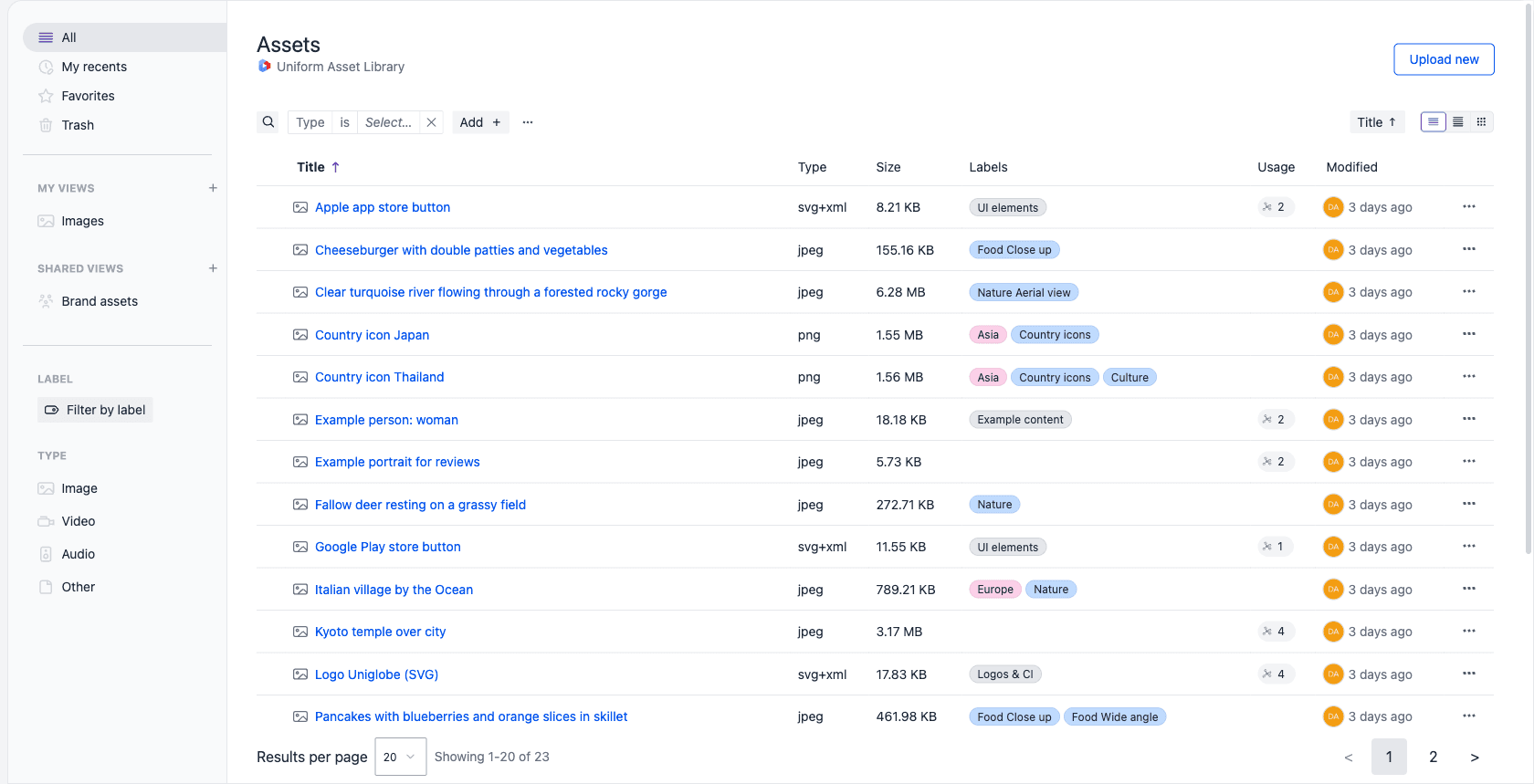
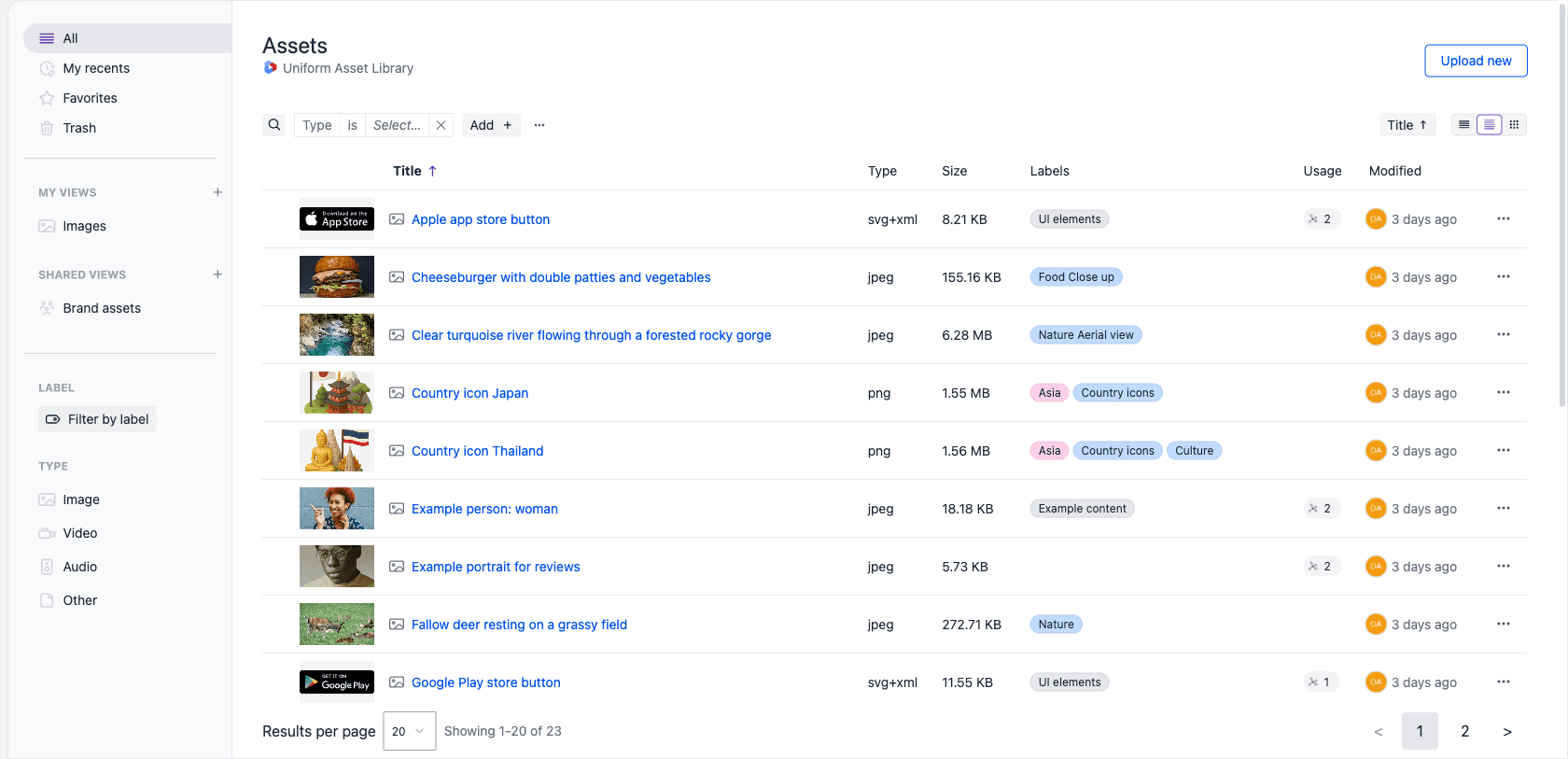
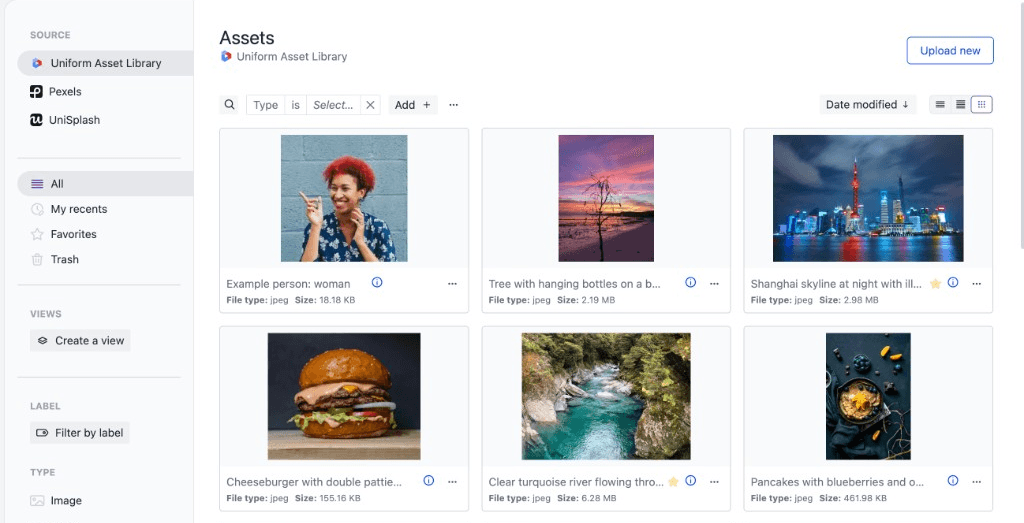
The asset list offers three viewing options to help you work with assets at any scale. Use the segmented view control on the right of the search and filter bar to switch between them. Your choice is remembered per project in the browser you're using. These are the same list views available in other content listings.
List#
A compact, text-focused view that shows each asset's title, type, size, labels, usage, and modification date as columns. Best for scanning large libraries or working with non-visual asset types like PDFs and audio files.
Large list#
An enhanced list view with larger thumbnails alongside each asset's metadata. Useful when you want to verify the visual content of an asset while still seeing its metadata at a glance.
Grid#
A visually rich view that presents assets as large cards with prominent thumbnails. Best for image-heavy libraries where the visual is the primary identifier. This is the default view when you open the Uniform Asset Library.
My recents#
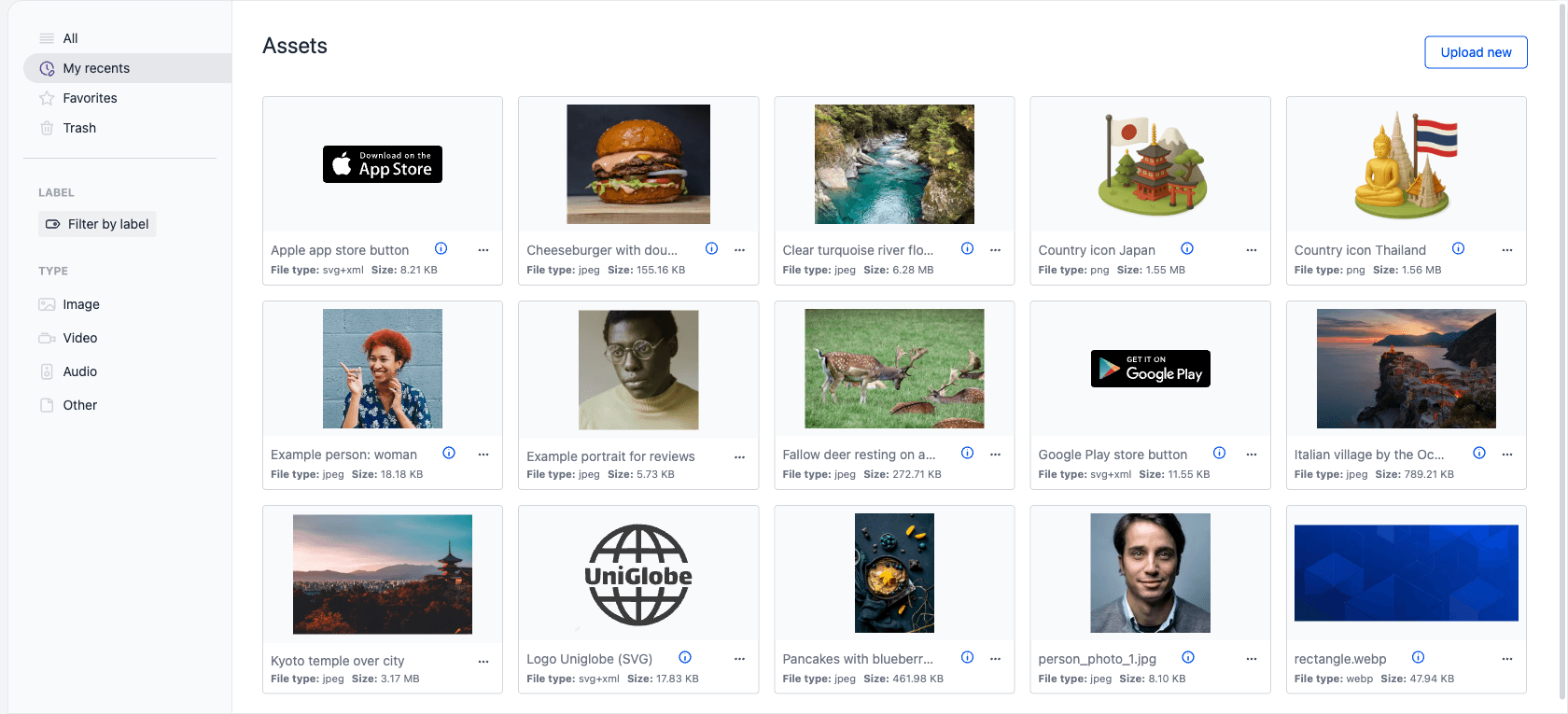
Select My recents in the sidebar to filter the list to the 20 assets you most recently uploaded, opened in the asset editor, or edited, newest first. Only assets from the Uniform Asset Library are tracked; assets from DAM integrations don't appear here.
See My recents for more about how recents work across your project.
Favorites#
Select Favorites in the sidebar to filter the list to the assets you've favorited. Select the star on any asset row or card to add or remove it from your favorites.
Custom views#
Below My recents, Favorites, and Trash, the sidebar lists your saved custom views for the asset library. A view saves the search, filter conditions, and sort you're using under a name you can reopen later.
Until you save your first view the group shows a single Create a view button. After that, personal views are grouped under My Views and views shared with the project under Shared Views, each with a + button to save the current search and filters as another view. You choose between the two when you name the view, by setting Who sees this view? to Just me or Everyone.
The Views group is specific to the main asset list. It isn't shown on My recents, Favorites, or Trash, and views aren't offered when you pick an asset from an asset parameter.
Searching, filtering, and sorting#
The Uniform Asset Library supports a powerful set of search, filter, and sort options for finding the right asset quickly. Keyword search, filter conditions, sorting, and list views work the same way across content listings — see search, filter, and sort.
Options specific to assets include:
- Full-text search across the title and description of an asset. Assets with no title fall back to their file name. Labels aren't searched — use the label filter instead.
- Filter by labels using either the quick filter in the sidebar or the advanced label filter operators
- Filter by type (Image, Video, Audio, Other) using the sidebar or the Type condition on the bar
- Filter and sort by system property (Date created, Date modified) using the search and filter bar above the list
The asset library opens with a single empty Type is condition on the bar. Assets aren't localized, so the bar has no Show locale control. While a keyword search is active, results are ordered by relevance and the sort control is locked.
Selecting a single media type from the sidebar or the search filters (for example, Image) unlocks additional type-specific filter properties: Title, Description, File size, and URL. Images add Width (px) and Height (px). These properties are only meaningful within a single media type, so they appear once a type is selected. Title and File size can also be sorted on, along with Width (px) and Height (px) for images.
Search in the asset parameter#
The same search and filter bar is available when selecting an asset from inside an asset parameter.
Upload an asset#
You can upload assets to the library in several ways:
- Upload new button: Click Upload new in the toolbar to open the Upload asset dialog, then drop or paste a file into it, or click Upload from computer.
- Drag-and-drop onto the list: Drop one or more files anywhere on the asset list to start an upload. The library shows a Drop to upload overlay while you drag.
- Upload from inside an asset parameter: When you upload from an asset parameter, the asset is held as a transient asset on the parameter until the composition or entry is saved. Once saved, it's added to the asset library. See transient assets.
Limitations#
- Content Types: Formerly called mime-types. The following file types can be uploaded:
- Images: .jpg, .jpeg, .jfif, .pjpeg, .pjp, .png, .gif, .svg, .webp, .apng, .avif
- Video: .mp4, .webm, .ogg
- Audio: .mp3, .wav, .ogg, .flac
- Other: .pdf, .doc, .docx, .xls, .xlsx, .ppt, .pptx, .csv, .txt, .md, .json, .zip, .lottie, .srt, .vtt
- File size: 50 MB
- Files per upload: 10
Upload and manage assets with Scout or MCP
Scout and the Uniform MCP server can add assets to the library and update their metadata. See Scout capabilities and limitations.
Use AI to generate asset metadata on upload#
When you upload an image, the AI can automatically suggest a title, description, labels, and focal point based on the image content.
- Titles, descriptions, and labels are influenced by asset guidance if configured. Focal point is suggested by the AI based on image analysis and is not affected by guidance.
- AI suggestions are applied to the asset when it is created. You can review and modify the metadata after upload.
- If an asset parameter has default labels, those labels are merged with any labels suggested by the AI.
- When selecting an existing asset from the library, no AI suggestions are applied. The asset retains its existing metadata.
- Replacing the media file on an existing asset in the asset editor doesn't run AI analysis either. Only new uploads do.
- AI metadata generation is supported for image types only (JPEG, PNG, GIF, WebP). Other uploadable image formats such as SVG and AVIF aren't analyzed.
Requires Uniform AI and AI credits
AI metadata on upload requires Uniform AI features and AI credits to be enabled for your team.
Edit an asset#
Click an asset's thumbnail or name to open it in the asset editor, where you can update its title, description, labels, and focal point, replace the underlying media file, and review its usage and metadata.
For details on every editor capability, see the asset editor reference.
Delete an asset#
You can delete an asset from the library by opening the menu on a row or card and selecting Delete, or by clicking Delete asset inside the asset editor. Either way, Uniform asks you to confirm and tells you how long the asset stays recoverable.
Deleted assets go to Trash
Deleting an asset moves it to Trash. The public file URL stops working immediately.
Check the asset's usage before deleting: the Usage column in the List and Large list views shows a reference count, and the asset editor shows the full Usage panel.
Permissions#
Deleting an asset requires the Delete permission on the Assets entity group. Users who don't have this permission don't see the delete affordances at all: the menu is omitted from asset rows and cards, and the Delete asset button is omitted from the asset editor. Restoring an asset from Trash requires Update rather than Delete.
For details on configuring permissions, see roles and permissions.